Managing instances
"My Instances" in the left menu lists everything you have.
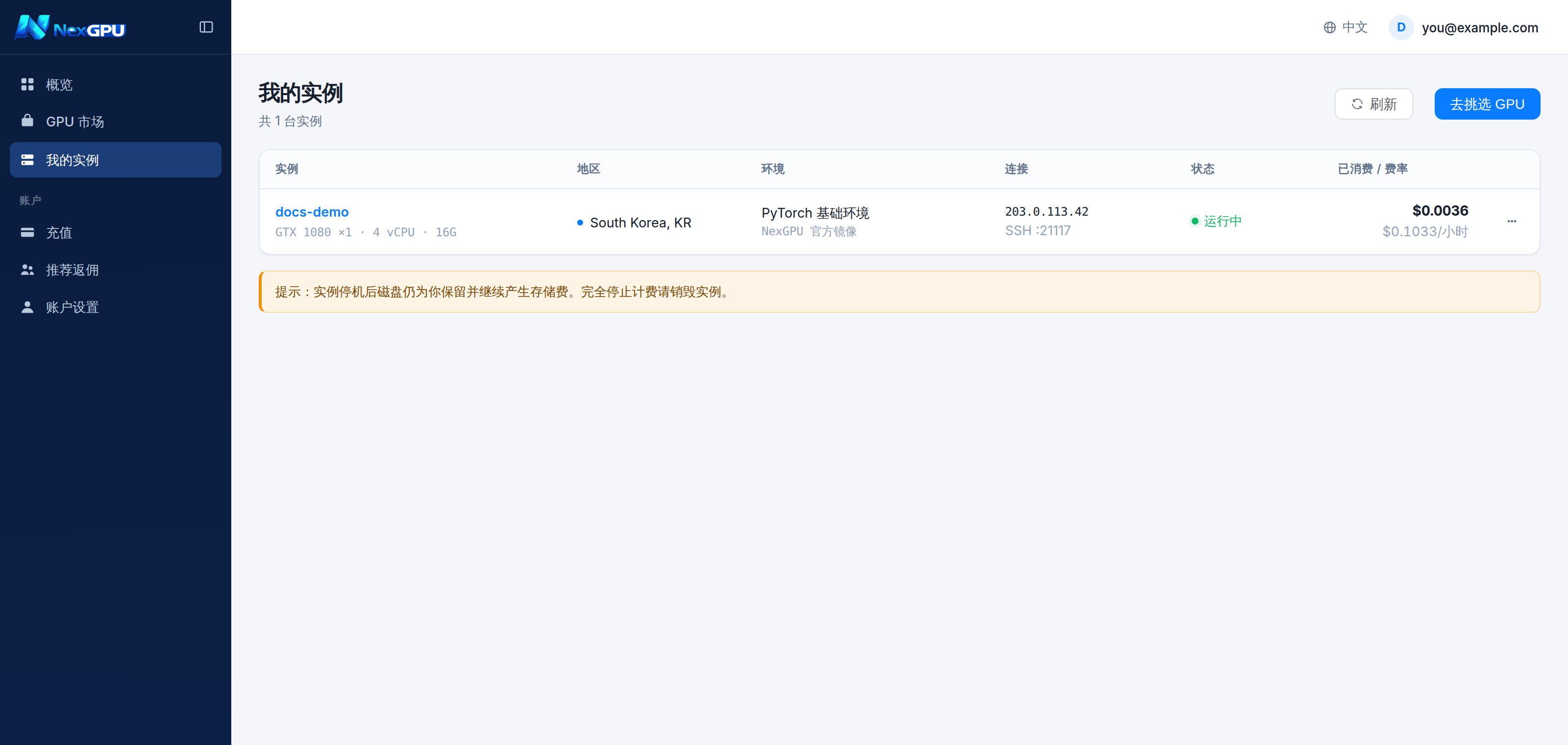
Reading the state
| State | Meaning | Compute | Storage |
|---|---|---|---|
| Scheduling | Being dispatched to a machine | No | Yes |
| Preparing | Pulling the image | No | Yes |
| Booting | Image ready, container starting | No | Yes |
| Running | Ready to connect | Yes | Yes |
| Stopped | Container stopped, disk retained | No | Yes |
| Destroyed | Disk released | No | No |
:::warning Only "Destroyed" costs nothing Storage bills from the moment of creation — while the image downloads, and while the instance sits stopped. :::
Stop versus destroy
This is the distinction worth being clear about.
Stop
- Compute charges end
- Disk is retained, storage keeps billing
- Data survives; you can start it again
- Right when: you are done for tonight but continuing tomorrow and do not want to rebuild the environment
The confirmation dialog tells you exactly what it will cost per day while stopped.
Destroy
- All charges end
- Disk released immediately, data permanently gone
- Requires typing the instance number to confirm
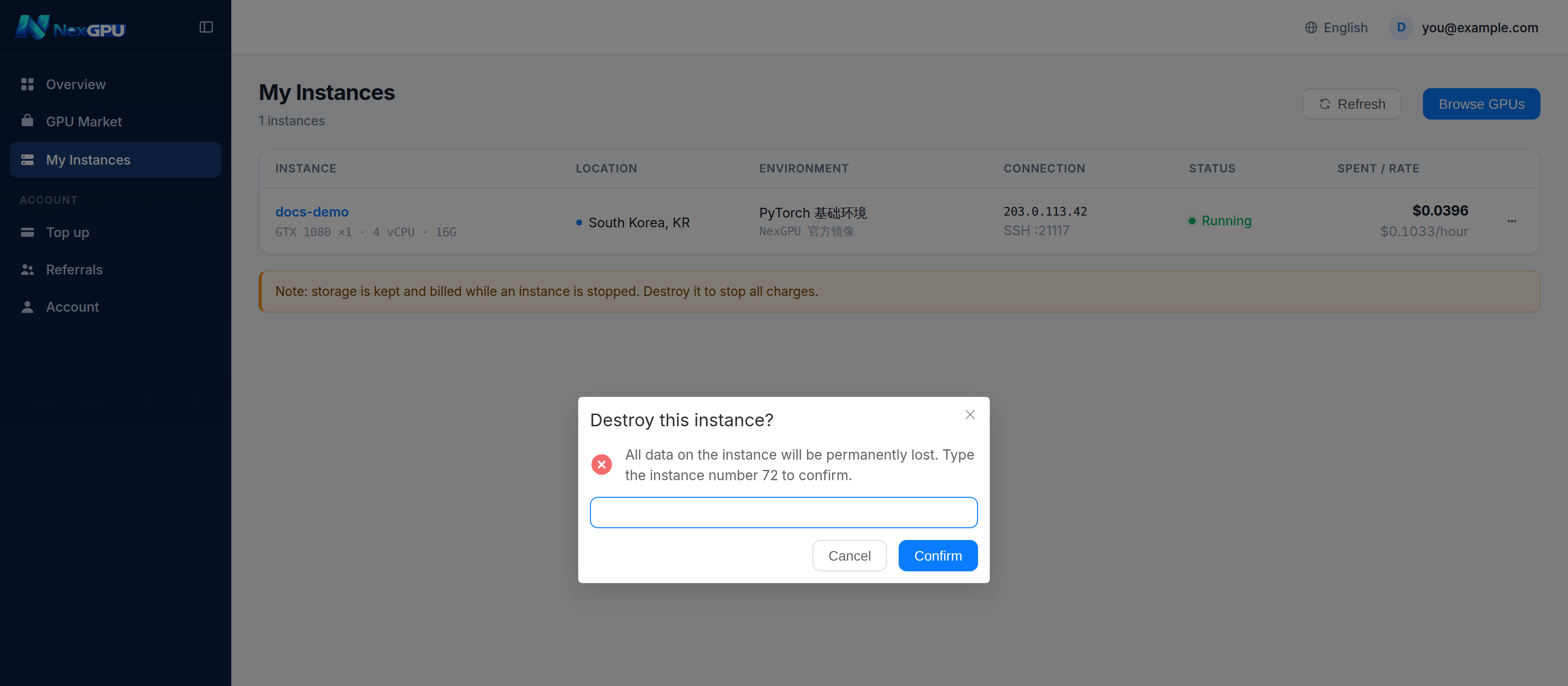
The typing requirement is deliberate friction — irreversible actions should not be one click away.
:::danger Take your results before destroying We hold no backup and destroyed data cannot be recovered. Download trained weights, generated outputs and code changes, or sync them to object storage. :::
:::tip Which one Back within a day or two → stop. But do the arithmetic: three days of storage against the time to rebuild the environment. Finished → destroy. This is the default answer. :::
Reboot
Restarts the container only; disk and data are untouched. Useful when a service has hung.
The five detail tabs
Click the instance name.
Connect
SSH command, direct address, key download, Jupyter, control panel. See Connecting.
Advanced
Port mapping table — container ports, their public addresses, and what each is for. Ports 9000–9009 are yours to use.
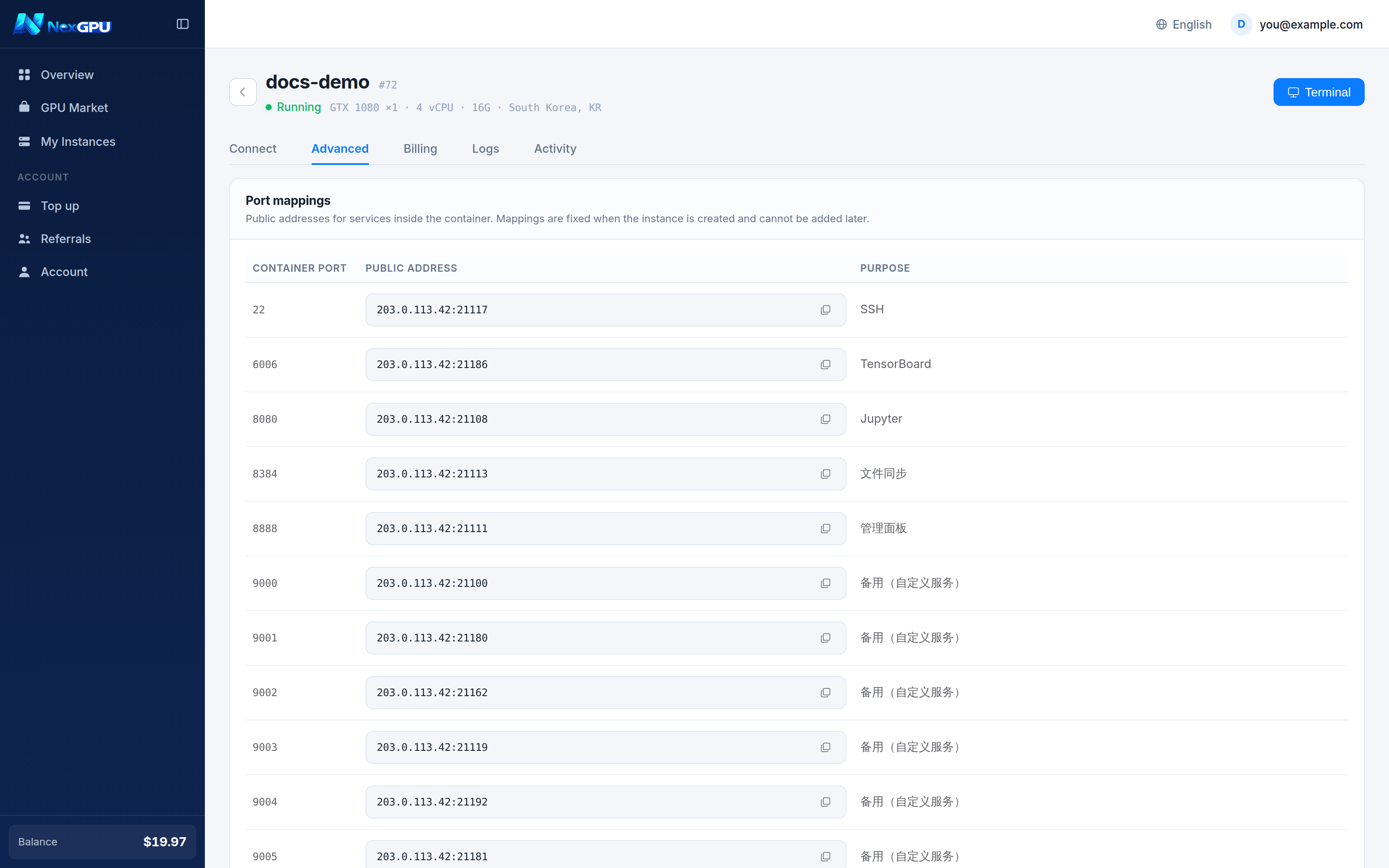
Below that:
- Live load — GPU utilisation, VRAM, CPU, memory, disk, network
- Hardware and environment — driver version, OS, compute capability, disk bandwidth
- Resource allocation — whether this physical machine is exclusively yours
:::info Live load tells you whether you overbought Persistently low GPU utilisation means the GPU is not the bottleneck — likely data loading or CPU — and a faster card will not help. Persistently full VRAM means the opposite. :::
Billing
Compute, storage and network listed separately with their unit rates and running totals.
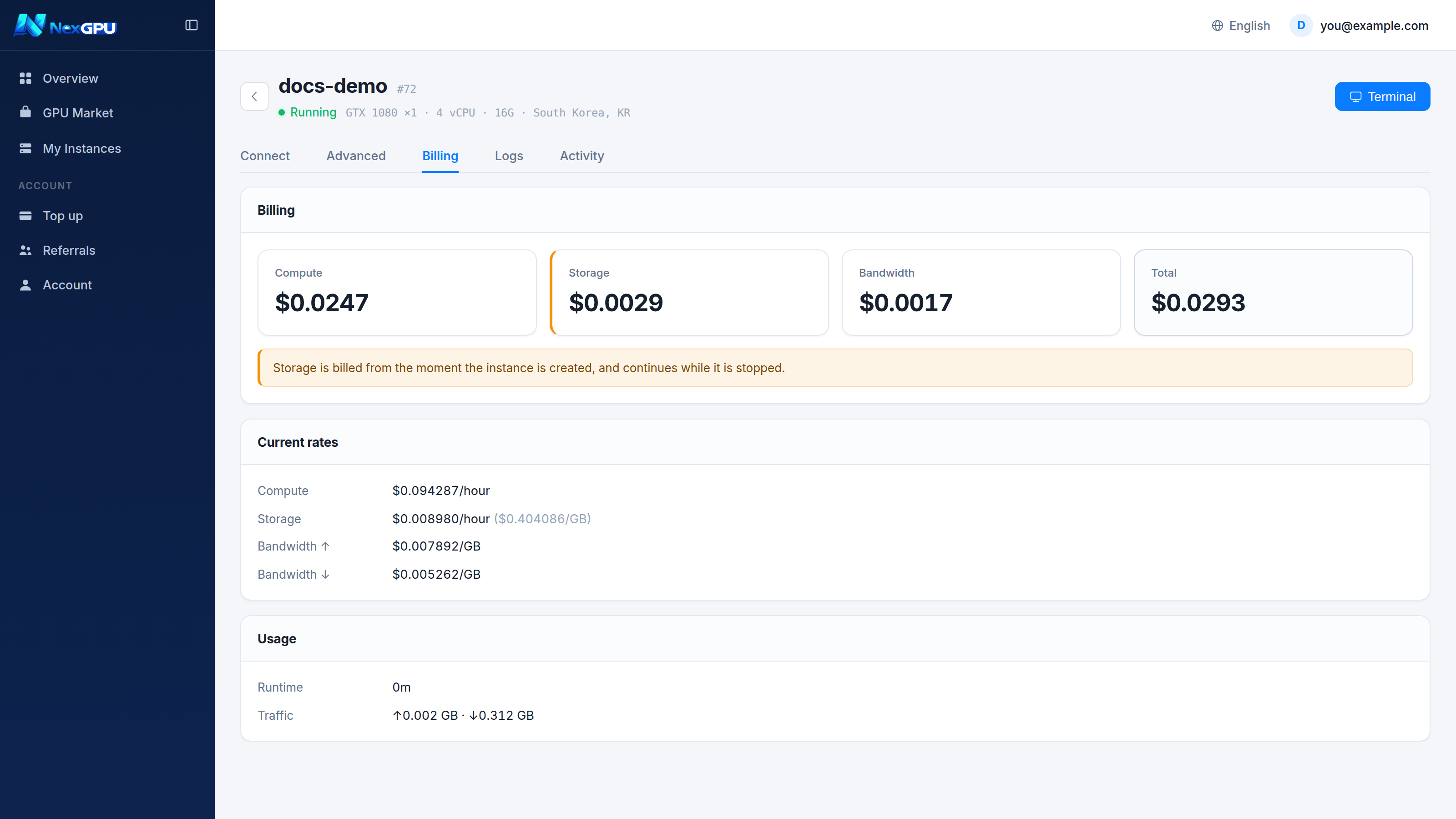
See Billing.
Logs
Container startup logs. Start here when an instance fails to boot or a service will not come up.
Activity
Every operation on this instance — created, started, stopped, destroyed, panel installed — with timestamps.
Renaming
You can rename an instance at any time from the detail page. The name is only for you, and it matters once you run several at once.