Creating an instance
Click "Rent" on a market row and a drawer slides in from the right.
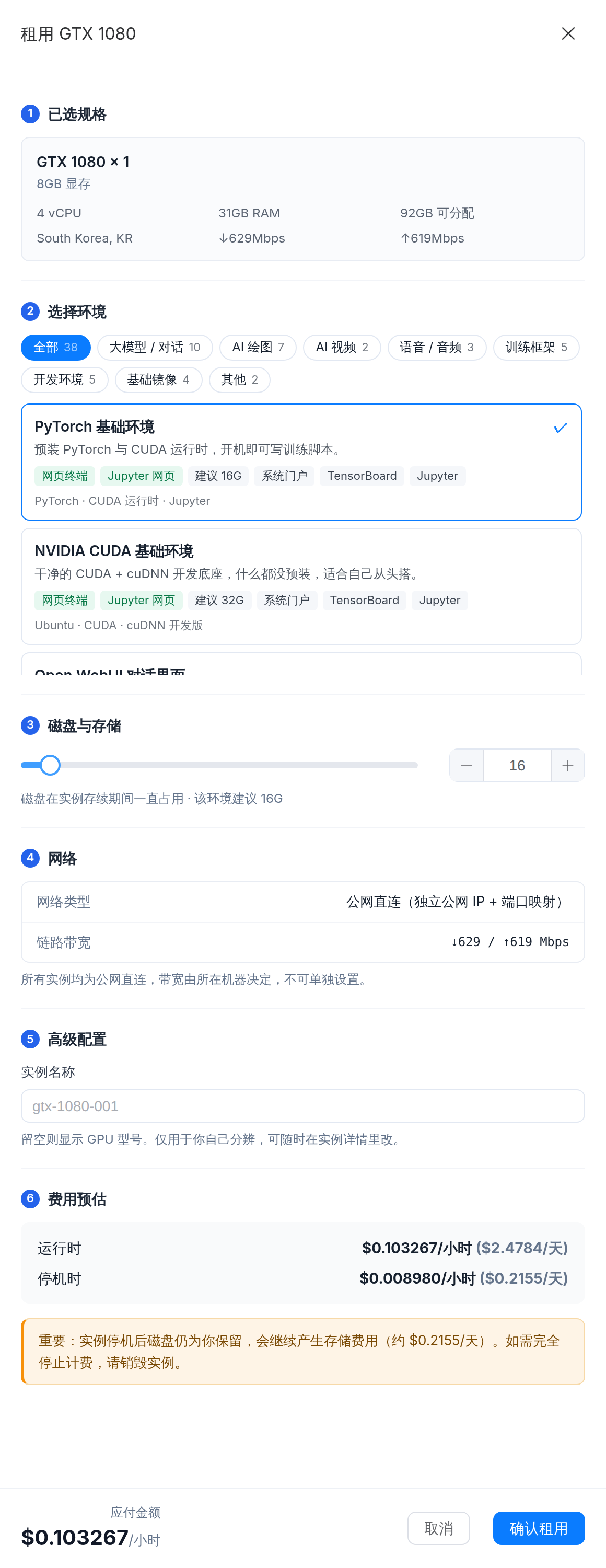
① Selected machine
Confirm it is the one you meant: model, VRAM, vCPU, RAM, allocatable disk, region, up and down bandwidth.
Wrong one? Close the drawer and pick again.
② Environment
Prebuilt environments are grouped by purpose: LLM / chat, AI image, AI video, speech / audio, training frameworks, dev environments, base images.
The small tags on each card tell you what it carries:
| Tag | Meaning |
|---|---|
| Terminal | Browser terminal supported |
| Jupyter | Ships Jupyter, one click after boot |
| Suggests 16G | Recommended disk size for this environment |
| Portal / TensorBoard / Jupyter | Services that already have a port mapped |
Not sure: choose PyTorch base to write training scripts, or NVIDIA CUDA base to build from scratch.
:::info Environments this machine cannot run are collapsed They are folded into "N environments this machine cannot run" rather than mixed in with the usable ones. :::
③ Disk
Drag the slider or type a number. The "suggests nG" on each environment card is a floor, not a target.
Give it enough: the image itself, model weights, datasets and outputs all take space, and you cannot expand it later. But do not overshoot — disk bills per GB-month for the entire life of the instance, including while stopped.
④ Network
Every instance gets a public direct connection: its own public IP plus port mappings. Bandwidth is set by the machine and cannot be configured, so this section is informational.
⑤ Advanced
Name the instance — sdxl-test, llama-finetune. Blank shows the GPU model.
Purely for your own recognition, changeable any time. Invaluable once you have three or more running.
⑥ Cost estimate
Read this section. Two lines:
| Meaning | |
|---|---|
| Running | Compute + storage, per hour and per day while it runs |
| Stopped | Storage only, per hour and per day while it sits stopped |
The amber note spells out what a stopped instance costs per day.
:::warning This is the most common billing surprise People assume stopping means paying nothing. Stopping only stops compute. The disk is still yours, so storage keeps billing. Destroy instances you are finished with. Stopping is only worth it if you will be back shortly. :::
Confirm
After confirming you land on "My Instances" and the state moves through:
Scheduling → Preparing → Booting → Running
First boot is usually 1–3 minutes; a large image, or a machine that has never cached it, takes longer. The page shows how long you have been waiting.
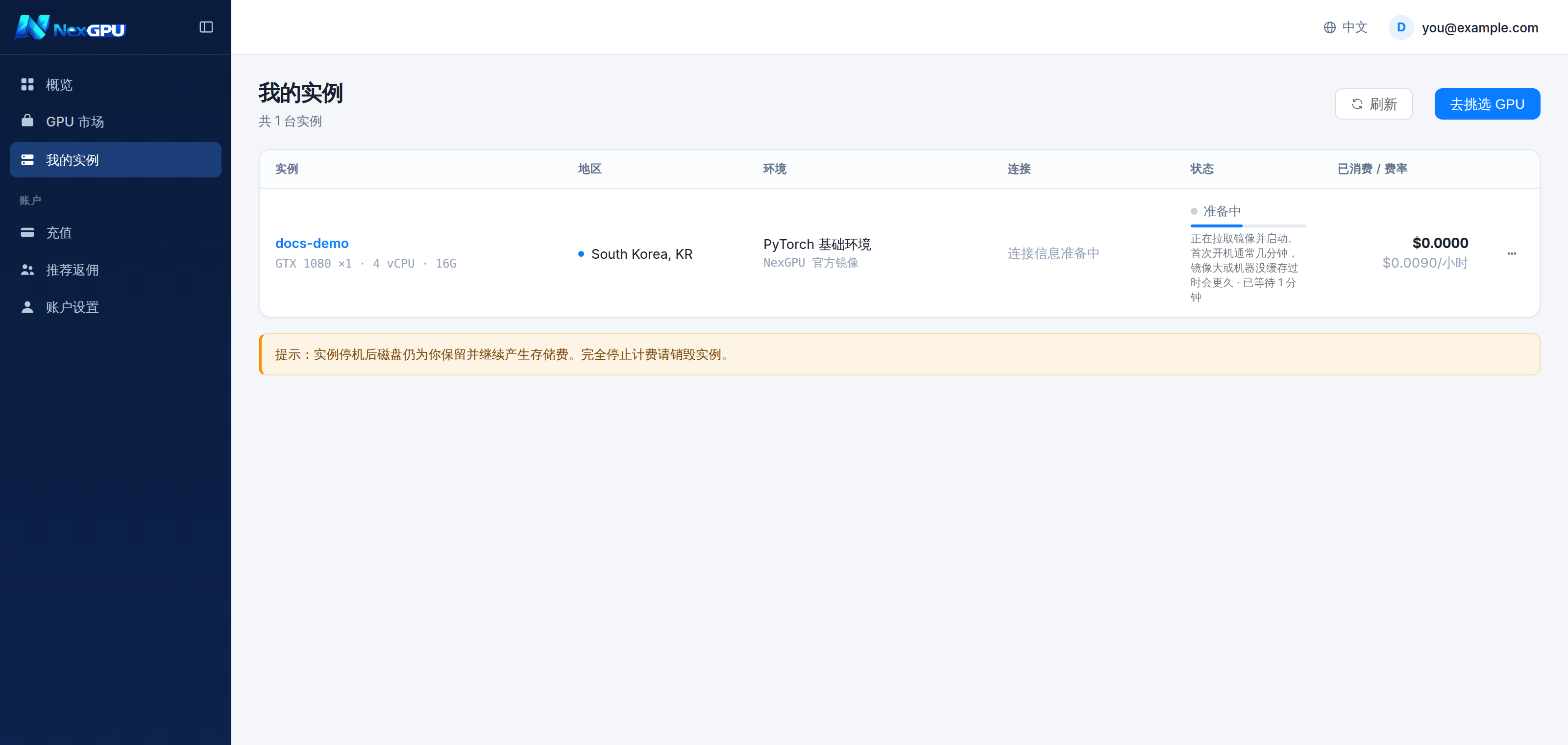
:::tip Does that waiting time cost money? Compute only starts once the instance is actually running. Storage starts the moment the instance is created, including while the image downloads. :::